

Dashboard
Your start page with Continue working, upcoming tasks, inbox and agent suggestions – and how to adapt it to your work.
Open in ClapilotThe dashboard is your start page. It shows at a glance what matters today, and you can arrange it like a pinboard: move widgets, resize them, hide them or add new ones.
Layout
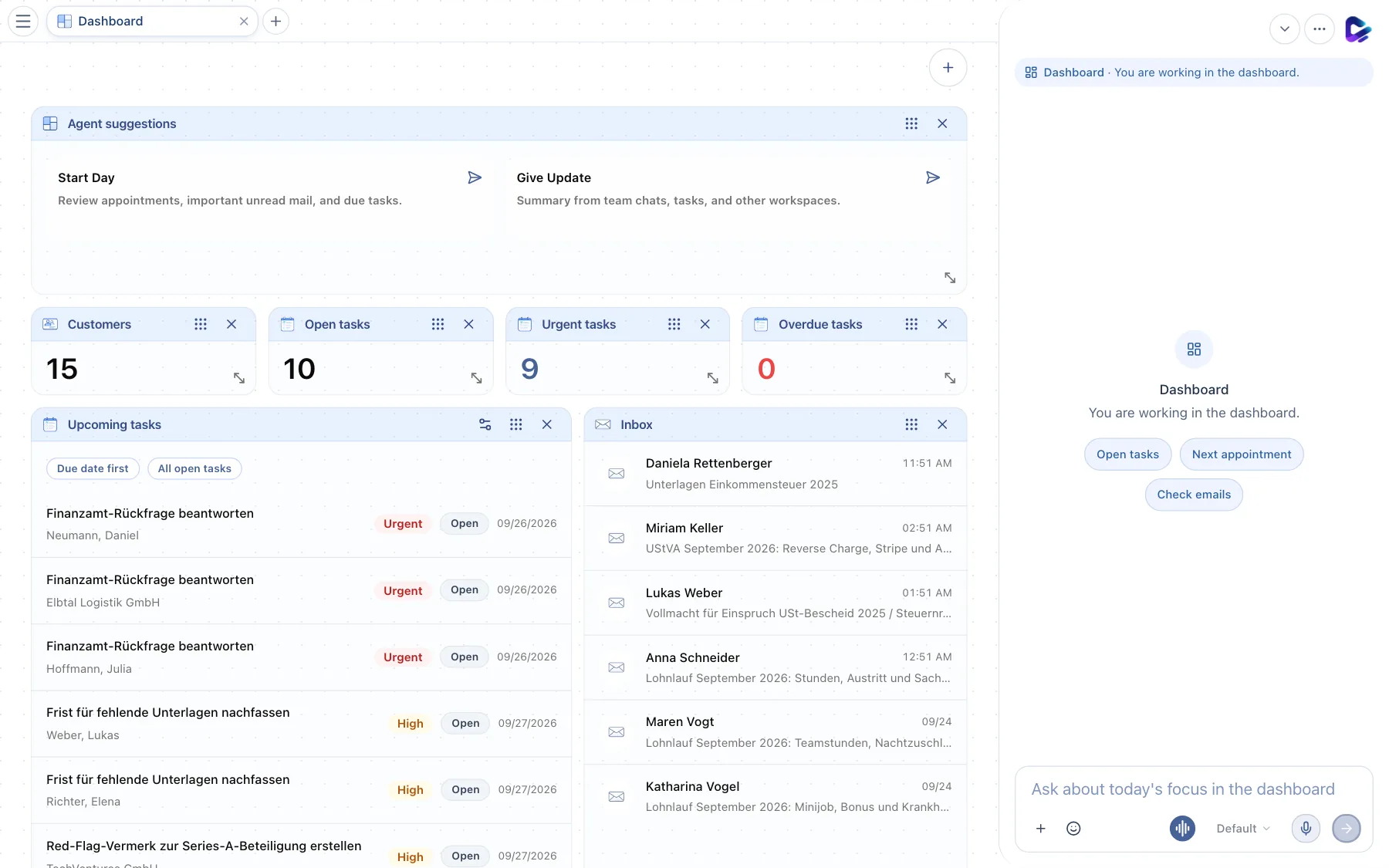
- Agent suggestions – click Start Day to have the agent walk you into the day based on the same “Relevant today” briefing and drill into appointments, emails and tasks where needed; Give Update summarizes team chats, tasks and other areas. The answer appears in the chat dock.
- Continue working – recently created or edited objects from Canvas, Documents, Tasks and Video Studio. Cards show the title, module, relative time and optional progress or thumbnail. Click to open the object directly. Filter by All / Documents / Media / Clients. An empty state explains where future work will appear. Only authorized items from the past 30 days are shown.
- Upcoming tasks – your next tasks with priority, status and deadline. Due date first and All open tasks change the sorting and filter.
- Customize task widget – sets which tasks the widget shows (for example only your own) and how they are sorted.
- Inbox – the latest emails in your personal mailbox. Click one to open it.
- Resize – drag the bottom-right corner to make a widget larger or smaller.
- Dashboard actions – the plus button for quick actions and new widgets (next section).
Each widget has a handle (six dots) at the top right for moving it by drag and drop, and an × for hiding it. You bring hidden widgets back with the plus button. Your layout is saved just for you.
This applies to every widget, including Relevant today, Continue working, Today & this week and Waiting for you: they start at the top but can be moved, resized, hidden and added back with the plus button like any other widget. Widgets you hide on the web are hidden in the iOS and macOS apps too.
Relevant today
At the very top, an AI card summarizes priorities, deadlines, news and recommendations in 3–6 points; each point opens the related item. Small figures such as “5 waiting for you (+3 since Friday)”, “2 deadlines today”, overdue items and today's appointments sit above it. The briefing is created once a day (on the first visit in the morning or at 07:00) and kept for the day; the round arrow Regenerate rebuilds it. If no AI model is reachable, an automatic overview built from the same data appears instead. Only titles and metadata of items you may see are used, never document contents.
Today & this week and Waiting for you
Below Continue working there are two columns (stacked on a phone):
- Today & this week – appointments and deadlines for today and the next 7 days, grouped by day (Europe/Berlin time zone). Overdue deadlines are shown in red at the top. A click opens the appointment, task or deadline.
- Waiting for you – one list of everything open across all modules: emails that need a reply, agent reply drafts awaiting approval, tasks assigned to you with a deadline, pending agent approvals and agent results to review. It is sorted by overdue, priority, deadline and age. Each row shows the module, the type (e.g. Reply, Approve, To do) and the deadline or age. Where the module offers it, finish the item directly with Done or Approve; otherwise Open opens it. The filters All / Emails / Tasks / Approvals narrow the list. When nothing is open you see “Nothing open 🎉”.
New items appear within a minute and disappear once you have completed, answered or approved them. You only see your own items or items shared with you. Start day in the chat uses the same briefing.
Quick actions and new widgets
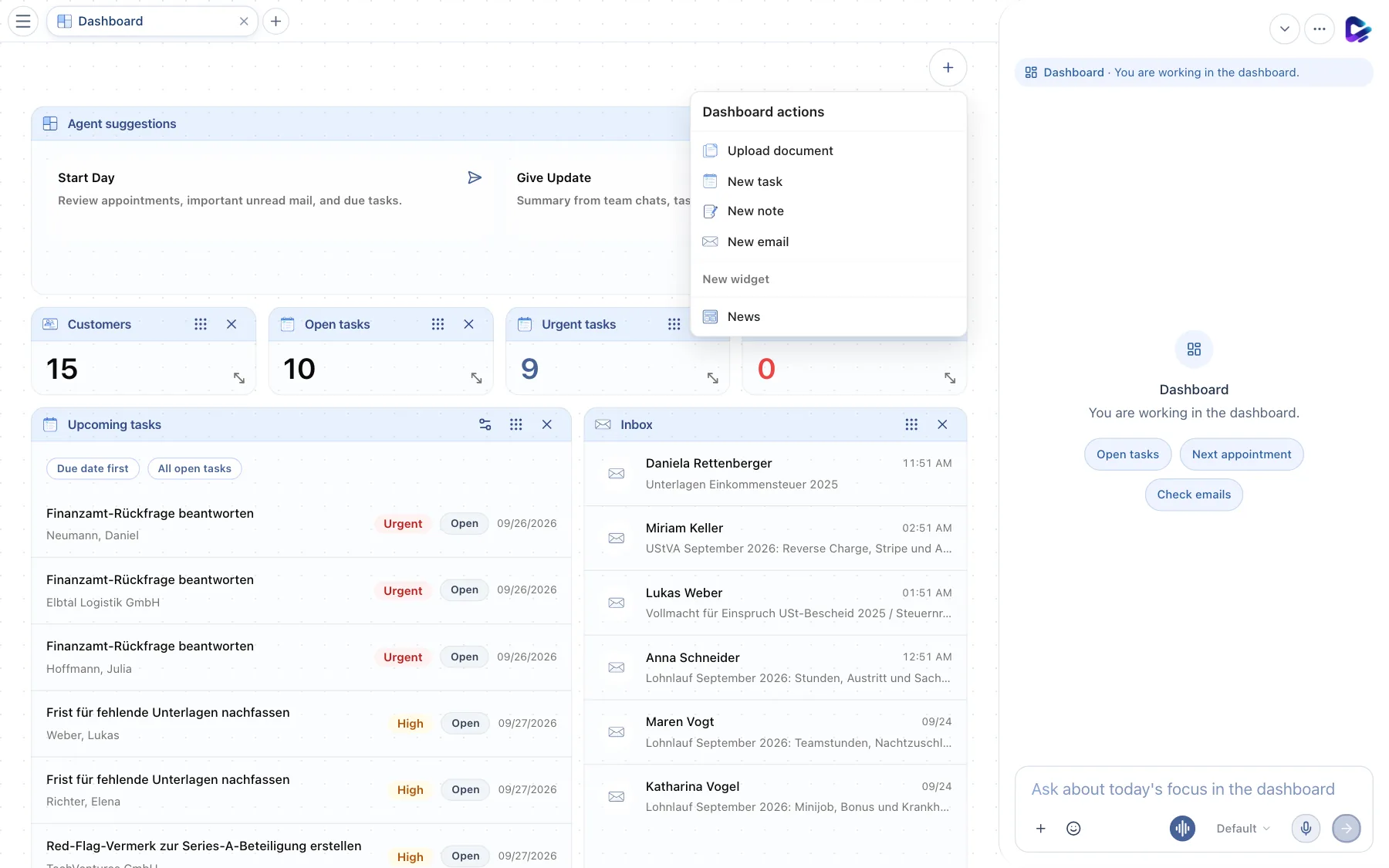
- Dashboard actions – opens the menu.
- Quick actions – Upload document, New task, New note and New email, without leaving the page.
- New widget – lists all widgets that are not on the dashboard right now, for example News. If all widgets are visible, you see a note here instead.
If the Feed module is installed, you also find the Feed widget here. It shows the Feed timeline right on the dashboard, without the side panel of the Feed page: tabs, search, the box for new posts and the posts. Clicking a post opens the conversation inside the widget; the arrow at the top left returns to the timeline. The iOS and macOS apps then show the latest posts as a card on their dashboard.
You create your own widgets – for example a table with your key figures – in the Store under Widgets, together with the agent if you like (Store and modules).
If something is missing
- “No personal email account configured.” in the inbox: connect your mailbox under Settings → App Connections (Getting started).
- Onboarding tile: If you skipped or didn't finish the introduction at your first sign-in, a tile here offers Continue onboarding or Finish onboarding. How the introduction works is described in Getting started. You can repeat it at any time under Settings → Profile with Restart onboarding.
- Templates from your documents: After the introduction, a card offers to turn a few typical documents into personalized templates. Set up templates opens the document picker (up to 10 documents); Clapilot creates the templates in the background and tells you in the chat when they are ready. The close icon hides the card.
What you can ask the agent
- “What's on my plate today?”
- “Which tasks are overdue, and who are they assigned to?”
- “Summarize the emails that have come in since yesterday.”
The four old counter tiles are replaced. Start Day, Give Update, Tasks, Inbox and custom widgets remain unchanged. New modules can emit items through the Activity Layer without Dashboard changes.
Home Assistant on the dashboard
Use Add devices to open Home Assistant. Add an entity tile and enable On global dashboard in its menu. Devices are visible to all workspace members. The close button on the global dashboard only unpins the widget. Control cover position, climate mode, lights and switches directly. Run executes automations; the separate switch enables or disables them. Skip conditions can be configured per automation. Status refreshes every five seconds. Ask the agent to “Put the office shutter on the dashboard” to add devices.